
Cybersecurity researchers have uncovered two malicious Google Chrome extensions that secretly collected users’ AI chatbot conversations and browsing data, affecting roughly 900,000 installs combined.
The fake extensions:
- Chat GPT for Chrome with GPT-5, Claude Sonnet & DeepSeek AI — ~600,000 users
- AI Sidebar with Deepseek, ChatGPT, Claude, and more — ~300,000 users
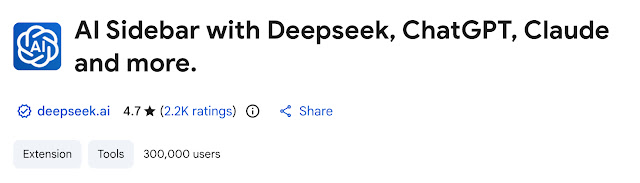
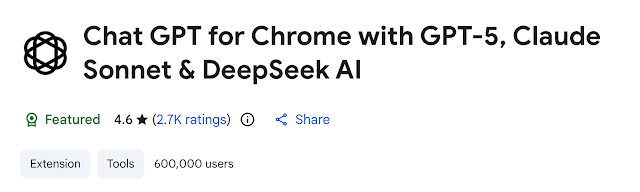
One of them even carried Google’s “Featured” badge, a sign meant to indicate trustworthiness, making this campaign especially deceptive.
How They Worked
According to cybersecurity firm OX Security’s analysis:
- The extensions masqueraded as legitimate AI assistant tools and mimicked a real extension from AITOPIA.
- Once installed, they harvested ChatGPT and DeepSeek conversations, browsing activity, and other page content.
- The stolen data included not just text from chats but potentially sensitive info like URLs and session-level context.
- Collected data was sent to remote attacker-controlled servers at regular intervals.
What Kind of Data Was Exposed
The malicious extensions could capture:
- User prompts and AI responses
- Conversations from ChatGPT & DeepSeek
- Browsing history and active tab URLs
- Session metadata that could contain identifiers or tokens
This means personal, business, or proprietary information entered into those AI chats could have been exposed.
Why This Is Dangerous
Stolen AI chat data can contain highly sensitive content — such as business strategies, code snippets, private communications, or personal details. Threat actors can misuse this information for:
- Identity theft
- Phishing or social engineering campaigns
- Corporate espionage
- Data reselling on underground markets
Malicious Extensions (Names & IDs)
| Extension Name | Chrome Web Store ID | Version | SHA-256 Hash (where available) |
|---|---|---|---|
| Chat GPT for Chrome with GPT-5, Claude Sonnet & DeepSeek AI | fnmihdojmnkclgjpcoonokmkhjpjechg | v1.9.6 | 98d1f151872c27d0abae3887f7d6cb6e4ce29e99ad827cb077e1232bc4a69c00 |
| AI Sidebar with Deepseek, ChatGPT, Claude and more | inhcgfpbfdjbjogdfjbclgolkmhnooop | v1.6.1 | 20ba72e91d7685926c8c1c5b4646616fa9d769e32c1bc4e9f15dddaf3429cea7 |
These IDs can help defenders block or identify the extensions in endpoint inventories and blocklists.
Command-and-Control (C2) Domains & Infrastructure
These domains were observed or reported as part of the exfiltration infrastructure used by the malicious extensions:
Active C2 & Malware Infrastructure
deepaichats[.]comchatsaigpt[.]com
Hosting / Frontend / Related Sites
chataigpt[.]prochatgptsidebar[.]prodeepseek[.]aichatgptbuddy[.]com
Blocking network connections to these domains at DNS/Firewall can help mitigate data exfiltration from affected browsers.
Behavior-Based Indicators
Even if extension IDs or domain names change over time, look for these suspicious behaviors in telemetry or endpoint logs:
Chrome Extension Permissions
Extensions requesting broad access such as:
"read all site data""access to all URLs""activeTab" + host permissions"
that aren’t strictly needed for stated functionality.
Such overbroad permissions are a red flag when paired with AI chat UI features.
Data Exfiltration Patterns
Indicators to monitor in network logs:
- outbound requests to unusual domain names (like the C2 hosts above)
- Base64-encoded payloads containing JSON or text snippets pulled from browsers
- scheduled periodic uploads ~30 min apart from browser processes
(these match malware’s internal timers)
User Interface Trickery
- Uninstall behavior where one malicious extension opens a tab prompting installation of the other malicious extension.
- Privacy policy or consent screens that mention “anonymous analytics” but request permissions to read all browsing content.
What You Should Do with These IOCs
For Users & Admins
1. Check installed extensions in Chrome (chrome://extensions) and cross-reference with the listed IDs.
2. Remove any matches immediately and reset passwords if sensitive services were accessed while installed.
For IT / Security Teams
1. Block known malicious domains in perimeter DNS or proxy filtering.
2. Push extension allow-lists and disable installation from untrusted publishers.
3. Monitor periodic outbound connections matching exfil patterns.
What Normal user Should Do
If you installed either of these extensions (or any suspicious AI assistant extensions), you should:
- Remove them immediately from Chrome.
- Go to
chrome://extensionsin the address bar to review installed extensions. - Run an antivirus/anti-malware scan on your system.
- Change passwords and enable 2FA for accounts you accessed while the extensions were installed.
- Avoid installing extensions with unknown publishers or those that request broad access to page content.
Broader Context
This case is part of a wider trend where attackers embed data-exfiltration capabilities into browser extensions, especially ones marketed around AI tools. Cybersecurity researchers warn users to be cautious with extensions, even if they have high install counts or appear featured.
